

Reports — how to read any of them
What this screen is for

"Reports" (/dashboard/reports) is the index of every report your role can open, listed in a fixed order (Shepherd's Overview first), plus an honest list of what's still being built. Every report in this suite shares the same anatomy, so this page explains that shared anatomy once — each individual report's own guide page then only covers what's different about it.
Since run 81, this same index also has a public preview at /reports — no sign-in required, open on any house the way / is. It lists the same eight live reports, each rendering the real report component, with a sticky jump strip across the top so a reader can jump straight to any one of the eight without endless scrolling.
What you see, in the screen's own labels
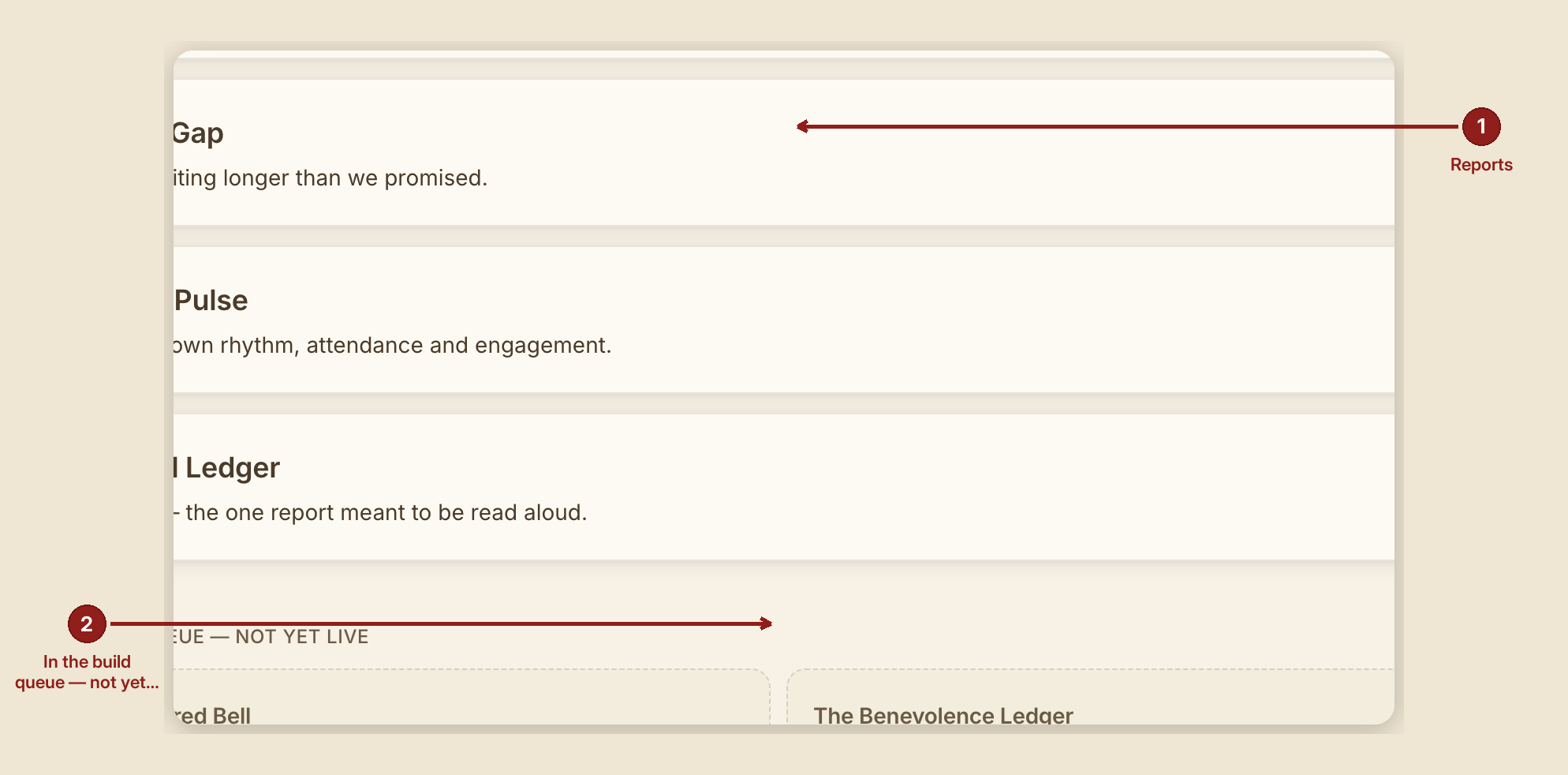
- "Reports" heading, with: "One number, one definition, everywhere it appears. Every report here traces back to the same records — nothing is computed twice by two different rules."
- Only the reports your role may open are listed (a
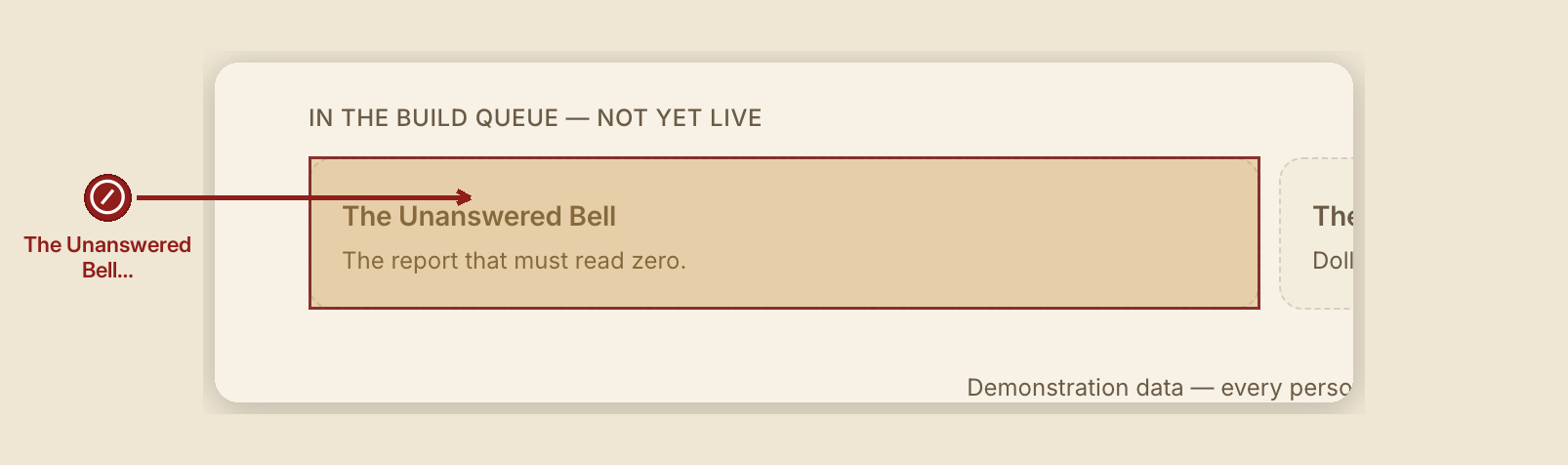
volunteersees fewer than afounder— see Roles & permissions). - A report that is named but not yet built is never listed here at all (RUN 203) — a card that goes nowhere would be a lie with a border around it, and the house would rather say nothing until there is a real report to open. What's coming is named instead on Home, under "What's new."
The eight live reports, in the order they appear
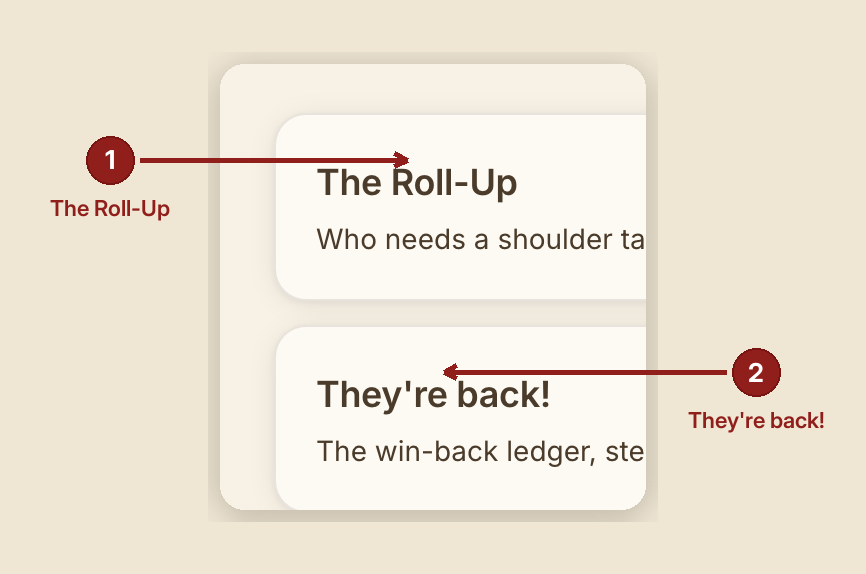
- Shepherd's Overview — the church's own three-altitude network view. Read this one first; it's the shape every other report borrows.
- Return Invite Follow-Up — who has drifted off their own rhythm.
- Waiting on Help — is anyone waiting past the first-call deadline this house set.
- Attendance Trends — the house's own rhythm, rolled up.
- "They're back!" — the win-back cycle, stage by stage.
- Welcome Home List — the names, meant to be read aloud.
- ID Walk — every open document chain.
- Alert History — every decision GraceBridge raised, and what came of it.
The anatomy every report shares
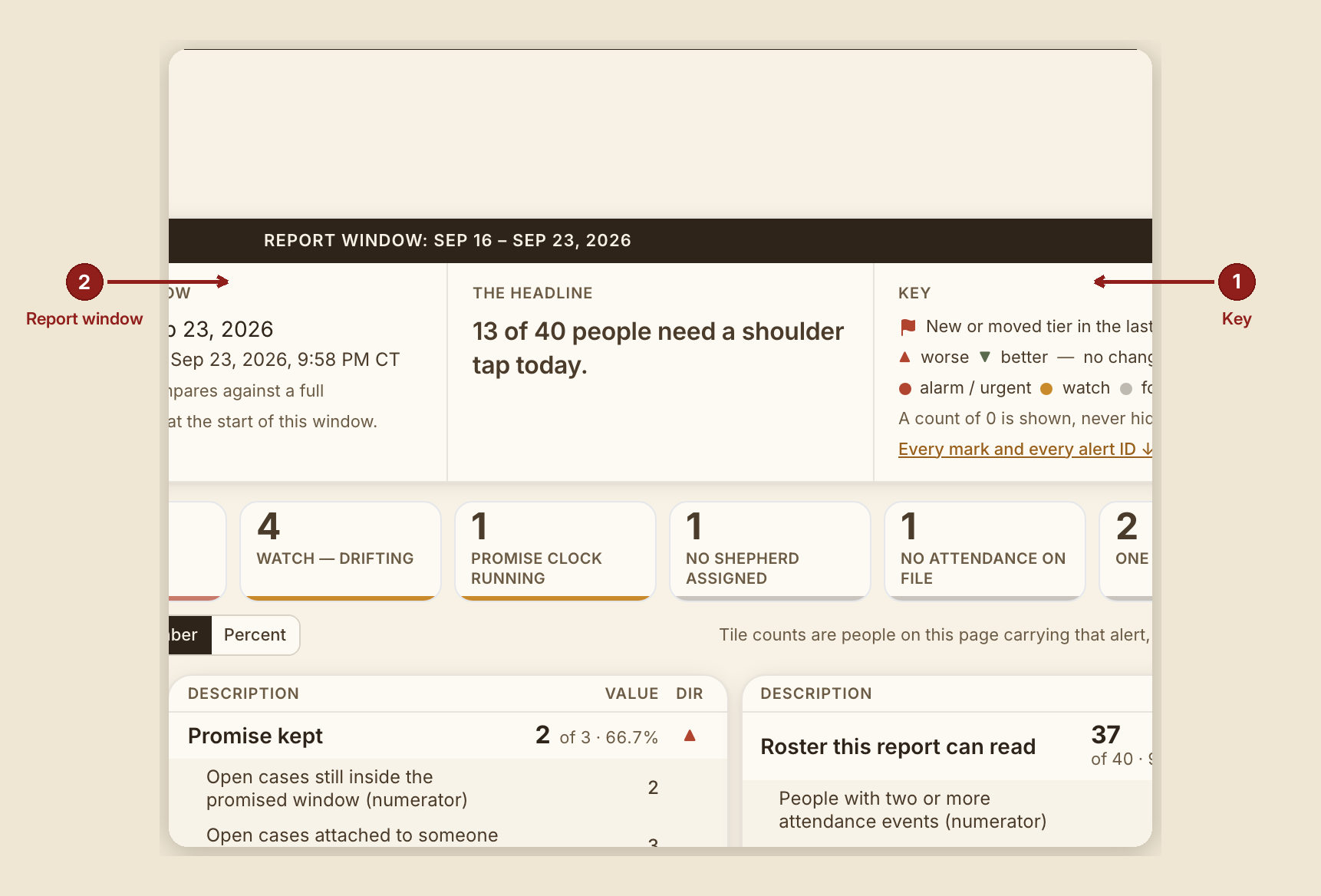
- A header quad — house, the report window and generated-on timestamp, one headline sentence, and a Key.
- A Key (legend) — the standing law behind it, quoted on every one: "a mark that appears anywhere on a report is explained in that report's Key. A mark a reader cannot decode is decoration, and this suite does not ship decoration."
- Severity marks, where a report uses them: three dots labeled Safety or deadline missed, Away much longer / longer than usual, Starting to miss / for information, plus a direction mark (▲ worse, ▼ better, — no change).
- Honest zeros. A tile or a count reading 0 is never hidden — a report explains, in a full sentence, what that zero actually means. "A count of 0 is shown, never hidden" is a standing rule, not a courtesy.
- The total every rate is counted out of. No percentage or count appears without what it's a share of.
- A "Changed" mark, where applicable, sourced from history — never a guess about what moved.
- A 12-week sparkline, where applicable: fixed 0–100% axis, a missing week shown as a break (never smoothed over), no color (severity lives elsewhere on the page).
- "In their own words" — verbatim quotes from a person's own intake or notes, shown only when authorized. Where it isn't authorized, the placeholder reads: "(words not authorized for display)." Long quotes fold behind "Show the rest — {n} more characters, unedited."
What to do
- Start at Shepherd's Overview if you're new to the reports — it sets the three-altitude pattern (Network → Group → Person) that several other reports reuse.
- Read a report's own Key before its table, especially the first time — every mark on the page is explained there, in that report's own words.
- Use print (your browser's own print function) for a clean, print- ready copy of any report page — the reports are built to print cleanly without extra setup.
What NOT to do
- Don't read a report's numbers as a performance score for a person. Several reports (Return Invite Follow-Up, Flock Pulse) exist explicitly to notice drift from a person's own baseline, not to compare people against each other.
- Don't act on a drift tier alone. Every "draft a check-in" style control in this suite is inert by design — nothing sends automatically. A human decides whether to reach out.
- Don't go looking for a report that isn't listed. If it isn't on this page, it isn't built yet — check Home's "What's new" for what's coming.
When something goes wrong

- A report has nothing to show: every report states its own honest zero, in full sentences, rather than showing a blank table — e.g. "0 of {n} … as of {date} — that is not a bug."
- You can't see a report listed here: your role may not include
report:readfor it — see Roles & permissions for exactly what each role can open.